USB accessories
The USB connector gives WiCAN PRO a second life beyond the OBD port: an ESPNetLink dongle for internet and GPS away from home, a USB Ethernet adapter for a wired network, or a plain USB GPS receiver. The same connector is the serial console for a PC, and can turn WiCAN itself into a USB network adapter.
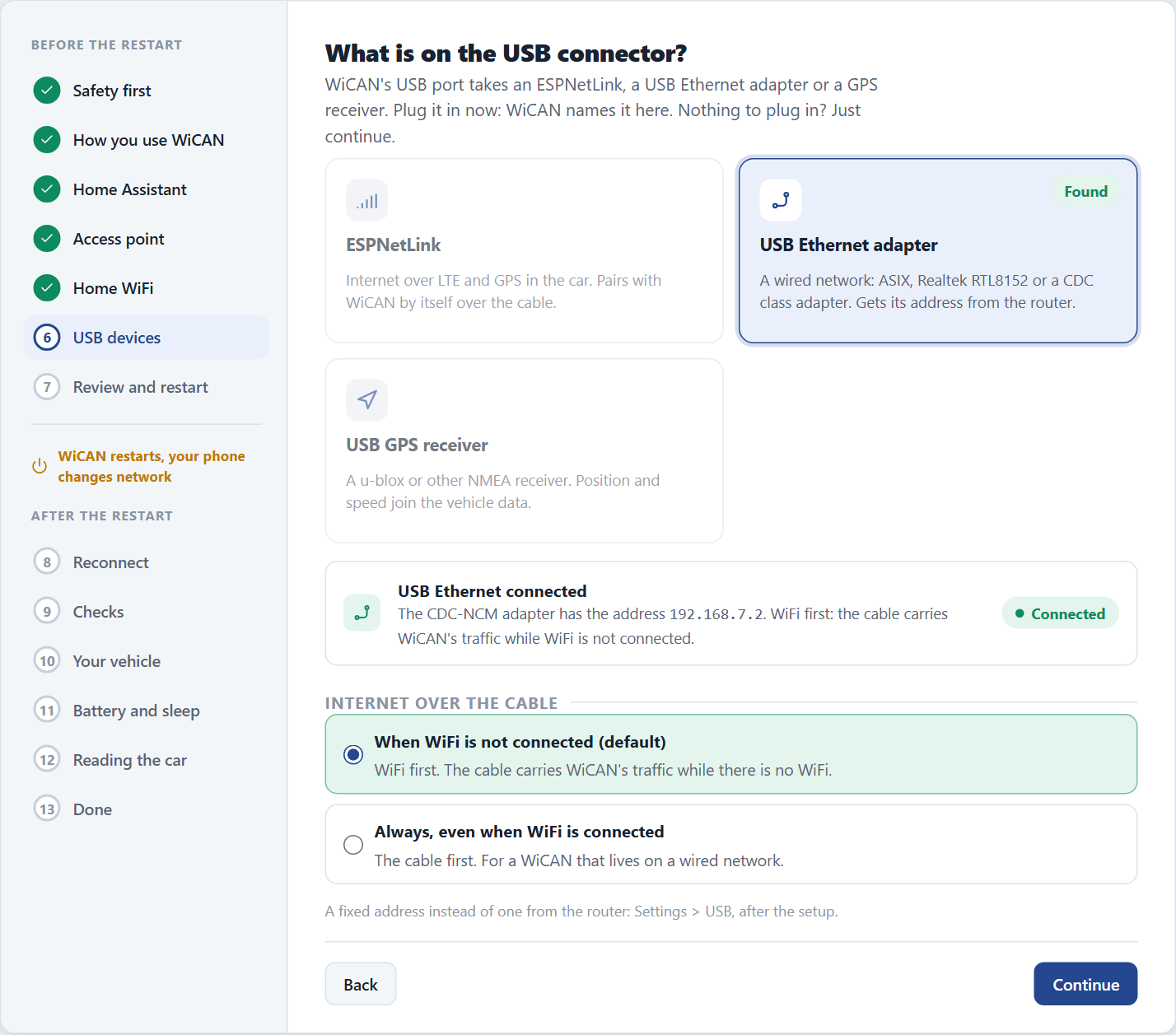
Everything about it lives under USB in the sidebar: Status, Settings and Dongle console. Quick Setup also has a USB devices step that names whatever is plugged in and asks the one question each accessory has.
What the connector does
Out of the box the connector waits for an accessory. With nothing plugged in it is a serial port for a PC (firmware flashing, the command line). The moment an accessory is attached WiCAN switches the connector to it and powers it; unplug it and the connector is a serial port again. Changing the Connector role to Device makes WiCAN the accessory instead: it then shows up on a PC as a network adapter.
| Accessory | What it gives WiCAN | What to do |
|---|---|---|
| ESPNetLink (MeatPi's LTE and GPS dongle) | Internet anywhere, and a GPS position | Plug it in. WiCAN pairs with it by itself. |
| USB Ethernet adapter (ASIX, or any CDC-ECM, CDC-NCM or RNDIS class adapter) | A wired network connection | Plug it in. WiCAN takes an address by DHCP. |
| USB GPS receiver (an NMEA receiver on a USB serial port, such as a u-blox 7) | A GPS position | Switch the Dongle console on so WiCAN reads it. Quick Setup does this when it finds a receiver. |
One accessory at a time. The position from a dongle or a receiver becomes a set of parameters (gps_latitude, gps_longitude, gps_altitude, gps_speed, gps_heading, gps_satellites) that flow wherever vehicle parameters go: the Dashboard, the Logger, Home Assistant's device tracker, rules and ABRP. Only a live fix is published; a remembered position is never reported as current.
ESPNetLink
Plug it in and it works: the dongle pairs with WiCAN over the cable by itself, with nothing to type. Where you see it depends on when you plugged it in.
Setting up a new WiCAN with the dongle plugged in. Quick Setup names the dongle on its USB devices step, with the SIM, the network, the signal, the internet and the GPS read from it, and asks the one question (how WiCAN uses it, below). No home WiFi where the car lives? The Home WiFi step offers Use the ESPNetLink, no home WiFi as soon as a dongle with a SIM is on the cable: WiCAN keeps its own access point on as your way in, gets its internet over LTE wherever the car is, and the rest of the setup continues on the access point without a network switch.
Plugging the dongle into a WiCAN that is already set up. A bar under the
header says ESPNetLink connected with the SIM, the carrier and the GPS
state the first time this browser sees the dongle; Finish setup opens
the dongle screen, OK puts the bar away. The header's connection pill
shows the connector from then on: USB: ESPNetLink · LTE · no fix. The
same screen is Set up on the ESPNetLink card of USB › Status.
How WiCAN uses it
| Mode | How it works | When to pick it |
|---|---|---|
| USB Ethernet (the default) | The dongle is a wired network adapter on the cable: always on, nothing to join, internet over LTE the moment the cable is in. GPS is read over the cable. | Always, unless the GPS never gets a fix this way: the USB link can disturb the dongle's GPS reception. |
| WiFi modem | The cable carries power only. WiCAN joins the dongle's own WiFi network (ESPNetLink_<id>, at 192.168.80.1) whenever your home WiFi is out of range, and the dongle routes it onto LTE. GPS is read over that link and gets its best reception. |
When the GPS matters and USB Ethernet never gets a fix. |
WiCAN tells you when to switch: after ten minutes away from home on USB Ethernet with LTE up and no fix, the GPS row turns to a warning, the dongle screen shows Switch to WiFi modem and the bar says the same on every page. One press ticks WiFi modem; Save restarts WiCAN once and the pairing does the rest.
Pairing, the first time
Nothing to type. With Automatic pairing on (the default):
-
Plug the dongle in and give it power (the car's ignition, or the bench supply).
-
In USB Ethernet mode WiCAN is on the dongle at once: it identifies the dongle over the cable, finds its USB settings already right, and the cable is the uplink. Nothing restarts.
-
In WiFi modem mode WiCAN reads the dongle's WiFi key over the cable, about 15 seconds after the dongle powers up, asks the dongle to cut its USB data lines, and restarts once when the key is new. The dongle's network is then one of WiCAN's backup networks: the home network stays first, the dongle takes over when the home network is out of range. The cut lasts until the dongle's next boot; WiCAN repeats the pairing in about five seconds at every later dongle boot, with no restart.
-
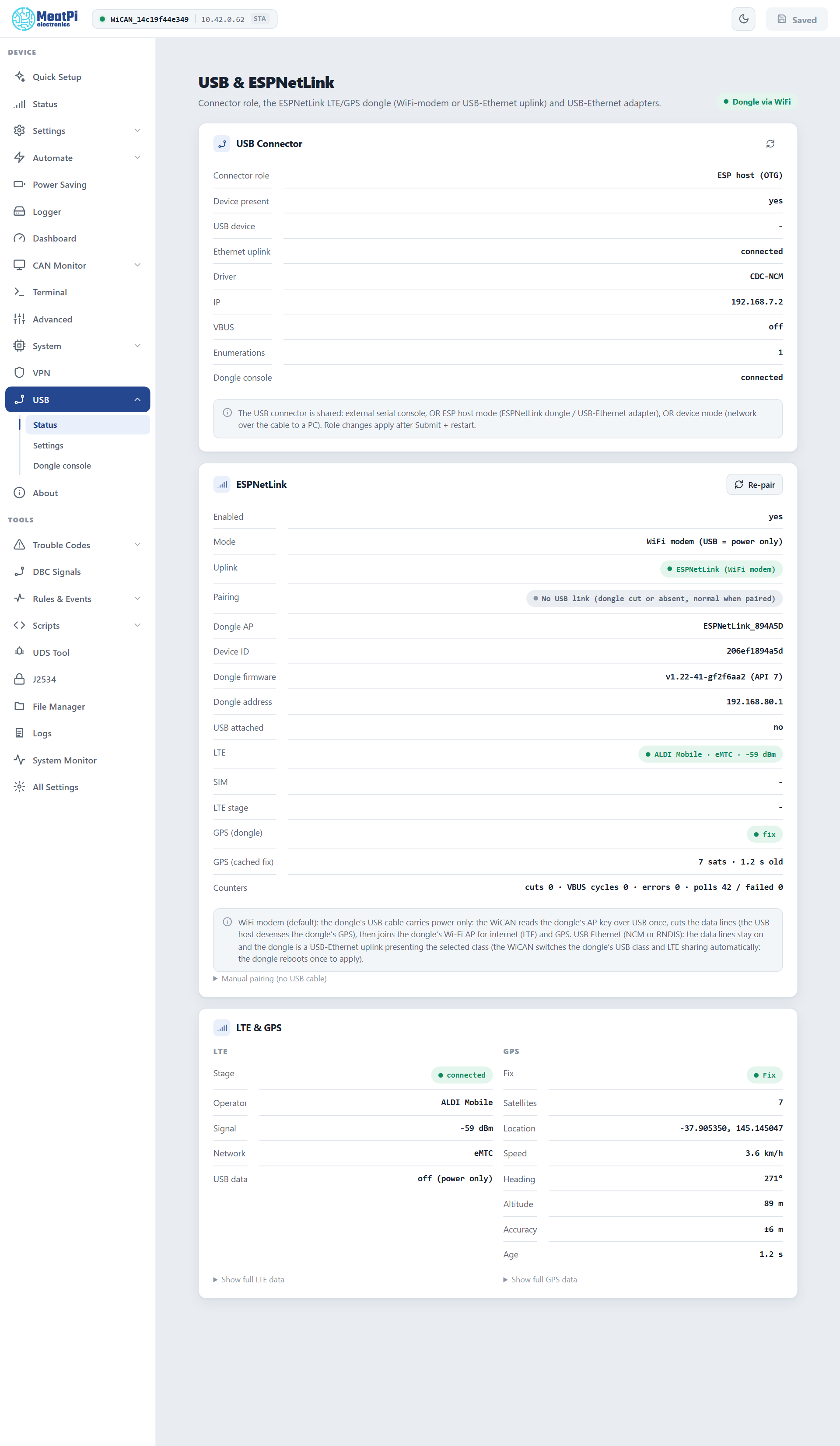
The Status page shows the dongle: its id, firmware, SIM, operator, signal, internet and GPS. The Uplink row says which link is carrying traffic.
WiFi modem on a fresh device pairs after its access point password is changed
WiCAN refuses to store anything in its WiFi settings while the factory access point password is in place, and the dongle's key is a WiFi setting. The Status page says so on the dongle's card (pairing on hold). Quick Setup changes the password on its Secure the access point step; the next time the dongle is seen WiCAN pairs by itself. USB Ethernet has no such hold.
Carrier settings. Most SIMs work without an APN. When your carrier gave you one, type it under APN, APN username and APN password: WiCAN sends it to the dongle the next time the dongle is on the cable, and the dongle restarts once to apply it. Blank keeps the dongle's own.
A SIM with a PIN. The SIM row says PIN locked and the dongle screen offers a SIM PIN field under the carrier settings. WiCAN sends the PIN to the dongle once; a PIN the SIM refuses shows as PIN rejected and is never tried again by itself (three wrong tries lock a SIM; the PUK is on the SIM's card). Check it and save again.
Re-pair. The Re-pair button on the Status page power-cycles the dongle's USB so WiCAN reads it again: use it when the dongle was set up afresh and its WiFi password changed. Manual pairing (no USB cable) under the card stores a dongle's network name and password by hand.
Dongle firmware. WiCAN needs a dongle firmware with API level 7 or newer. An older dongle shows as unsupported with the name of the missing route and a note to update it; the dongle's own manual covers the update.
The dongle console
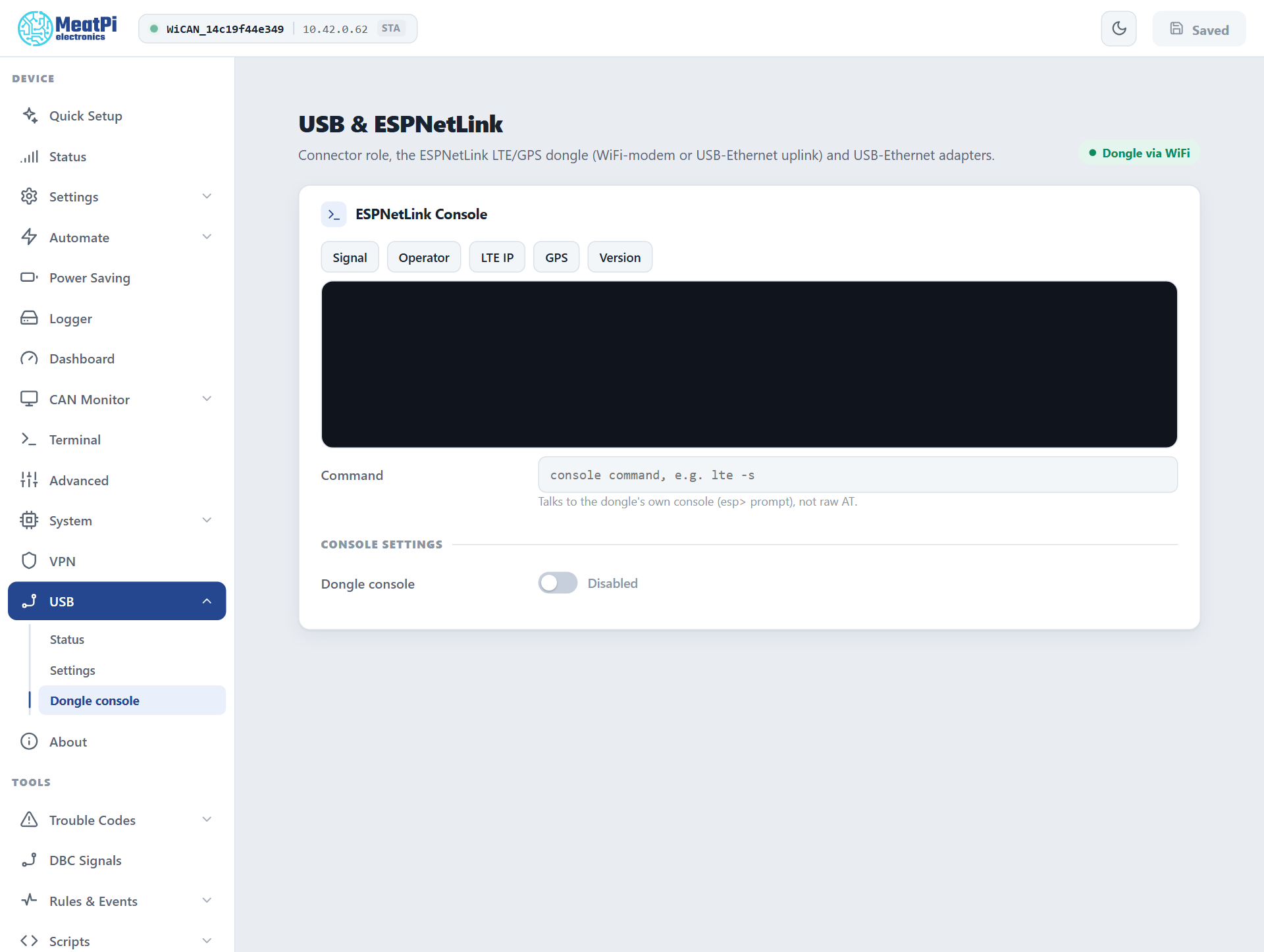
USB › Dongle console sends commands to the dongle's own command line and shows the reply: Signal, Operator, LTE IP, GPS and Version are one click each, and the Command field takes any of the dongle's commands (lte -s, gps -p, ver). The console needs the Dongle console switch on, and a data link on the cable: in WiFi modem mode the dongle's USB is cut once paired, so the console answers only in the USB Ethernet modes.
A USB Ethernet adapter
Plug it in. WiCAN brings the adapter up, asks for an address by DHCP and shows Ethernet uplink, Driver and IP on the Status page. A fixed address is set under USB › Settings › IP assignment (address, netmask and gateway under Show advanced).
WiFi stays WiCAN's default route while it is connected; the wire carries traffic when WiFi is down. Switch Prefer USB uplink over WiFi on to use the wire whenever it has an address. A broker or server reached only through the wire also wants MQTT's Connect when set to Any network (MQTT).
Same subnet twice
When the wired network uses the same address range as the WiFi network WiCAN is on, the wired address is put on hold until the WiFi moves to another range. Give the two networks different ranges.
A USB GPS receiver
A receiver that streams NMEA sentences over a USB serial port works without any driver: WiCAN recognises the first well-formed sentence and reads the fix from then on (position, speed, heading, altitude, satellites, accuracy). Two things to know:
- WiCAN only reads the receiver while the Dongle console switch is on (the same reader serves both). Quick Setup's USB devices step turns it on when it finds a receiver; by hand it is USB › Dongle console › Dongle console, then Submit.
- The Status page's USB Connector card names the receiver (vendor and product ids) and the Dongle console row says
GNSS receiver, NMEAwith the sentence count once it is being read.
WiCAN as a USB device
USB › Settings › Connector role › Device turns the connector around: after Submit a PC on the cable sees WiCAN as a USB network adapter and the web interface is reachable over that link. USB device class under Show advanced picks CDC-NCM (Linux, macOS, Windows 11), RNDIS (older Windows) or CDC serial (a serial port instead of a network adapter). Quick Setup offers to switch the role back to Host when it finds the connector in device mode.
Settings reference
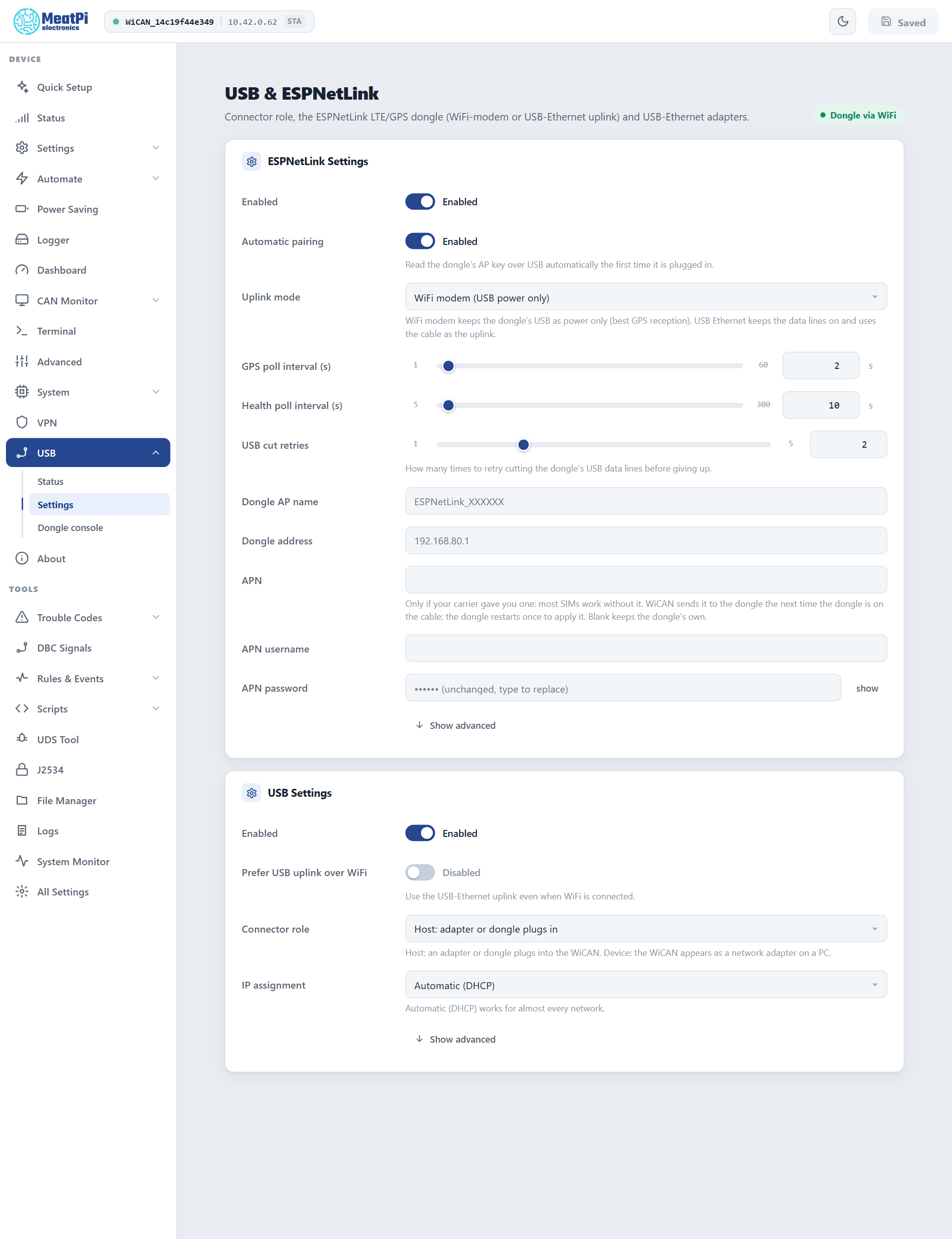
ESPNetLink Settings
- Enabled
- The dongle link runs. On by default.
- Automatic pairing
- Read the dongle's WiFi key over USB the first time it is plugged in. On by default; off means manual pairing only.
- Uplink mode
- WiFi modem (USB power only), USB Ethernet (NCM) or USB Ethernet (RNDIS). A dongle already paired keeps the mode it was paired with until you change it.
- GPS poll interval
- 1 to 60 s, 2 s by default.
- Health poll interval
- 5 to 300 s, 10 s by default: SIM, signal, operator, internet.
- USB cut retries
- 1 to 5, 2 by default: attempts at cutting the dongle's data lines before a power cycle of the dongle.
- Dongle AP name, Dongle address
- Filled in by pairing. The address is only needed when the dongle is not reached at its usual place.
- APN, APN username, APN password
- Carrier settings relayed to the dongle; blank keeps the dongle's own.
USB Settings
- Enabled
- The connector watches for an accessory. On by default.
- Prefer USB uplink over WiFi
- Use the wired link even when WiFi is connected. Off by default.
- Connector role
- Host (an accessory plugs into WiCAN) or Device (WiCAN plugs into a PC).
- IP assignment
- Automatic (DHCP) or a static address, netmask and gateway (under Show advanced).
- USB device class
- Device role only: CDC-NCM, RNDIS or CDC serial.
Sleep
The connector's power is off while WiCAN sleeps (Sleep and wake). An accessory restarts when WiCAN wakes; a dongle needs a minute or so to be back on LTE and to get a fix.
Troubleshooting
| Symptom | Likely cause | What to do |
|---|---|---|
| The dongle's card says pairing is on hold | the factory access point password is still in place | change it (Quick Setup, or Settings › WiFi); pairing follows by itself |
The dongle shows as unsupported |
dongle firmware older than API level 7 | update the dongle |
| The dongle never gets a GPS fix | USB Ethernet mode, or no view of the sky | use WiFi modem; park where the sky is visible |
The Status page says No USB link (dongle cut or absent, normal when paired) |
nothing wrong: in WiFi modem mode the cable is power only once paired | nothing |
| A USB Ethernet adapter shows no address | no DHCP server on that network, or the same address range as the WiFi network | set a static address, or change one of the ranges |
| A GPS receiver is named but gives no fix | the reader is off, or no fix yet | switch Dongle console on and Submit; wait for the first fix with a view of the sky |
| The PC's serial port disappeared | an accessory is attached: the connector belongs to it | unplug the accessory to get the console back |