VPN
On the mobile network the dongle sits behind the carrier's address translation: nothing can reach it from outside. A VPN turns that around. The dongle is a WireGuard client to your own server, or a node on a Tailscale network, and its web page, API and Home Assistant link become reachable from home while the car is anywhere.
- Types
- WireGuard (one peer, your server) or Tailscale (an auth key, your tailnet; Headscale works too)
- Needs
- The mobile network up and the clock set from it: the dongle connects a tunnel only once both are there
- Routes
- Only the tunnel's own range by default; Default Route sends everything through it
- Shows
- A blue LED while the tunnel is verified; VPN on the Status page;
vpnon the console
The WiCAN PRO has its own VPN
A WiCAN PRO behind the dongle runs its own VPN for its own traffic (its manual's Connectivity chapters). The dongle's VPN is for reaching the dongle: its page, its API, its firmware update, and its own Home Assistant link.
WireGuard
-
Create a peer on your WireGuard server with an address for the dongle (
10.6.0.2/32, say) and leave its private key for the next step, or let the dongle generate its own pair. -
Open VPN and pick WireGuard in the VPN dropdown. The WireGuard fields appear.
-
Fill the fields, or upload a standard
wg-quickconfiguration file with Upload wg-quick .conf: its[Interface]and[Peer]keys land in the fields below.Field Meaning Private Key The dongle's private key (44 characters). Or press Generate Keys: the dongle makes a key pair, keeps the private key and shows the public key once, to paste into the server's peer. The private key never leaves the dongle. Peer Public Key The server's public key. Preshared Key Optional, when the server uses one. Address The dongle's tunnel address ( 10.6.0.2).Allowed Ip, Allowed Ip Mask The range reached through the tunnel. 0.0.0.0means the dongle's own address only.Endpoint, Port The server's name or address and UDP port (51820). Keepalive S 25 seconds by default; keeps the carrier's address translation open. 0 turns it off. Default Route Off: only the allowed range goes through the tunnel. On: all of the dongle's traffic does. Dns A DNS server to use while the tunnel is up. -
Submit Changes. After the restart the dongle connects as soon as it has the mobile network and the time; the page's badge turns Connected and the LED blue (breathing with a GPS fix).
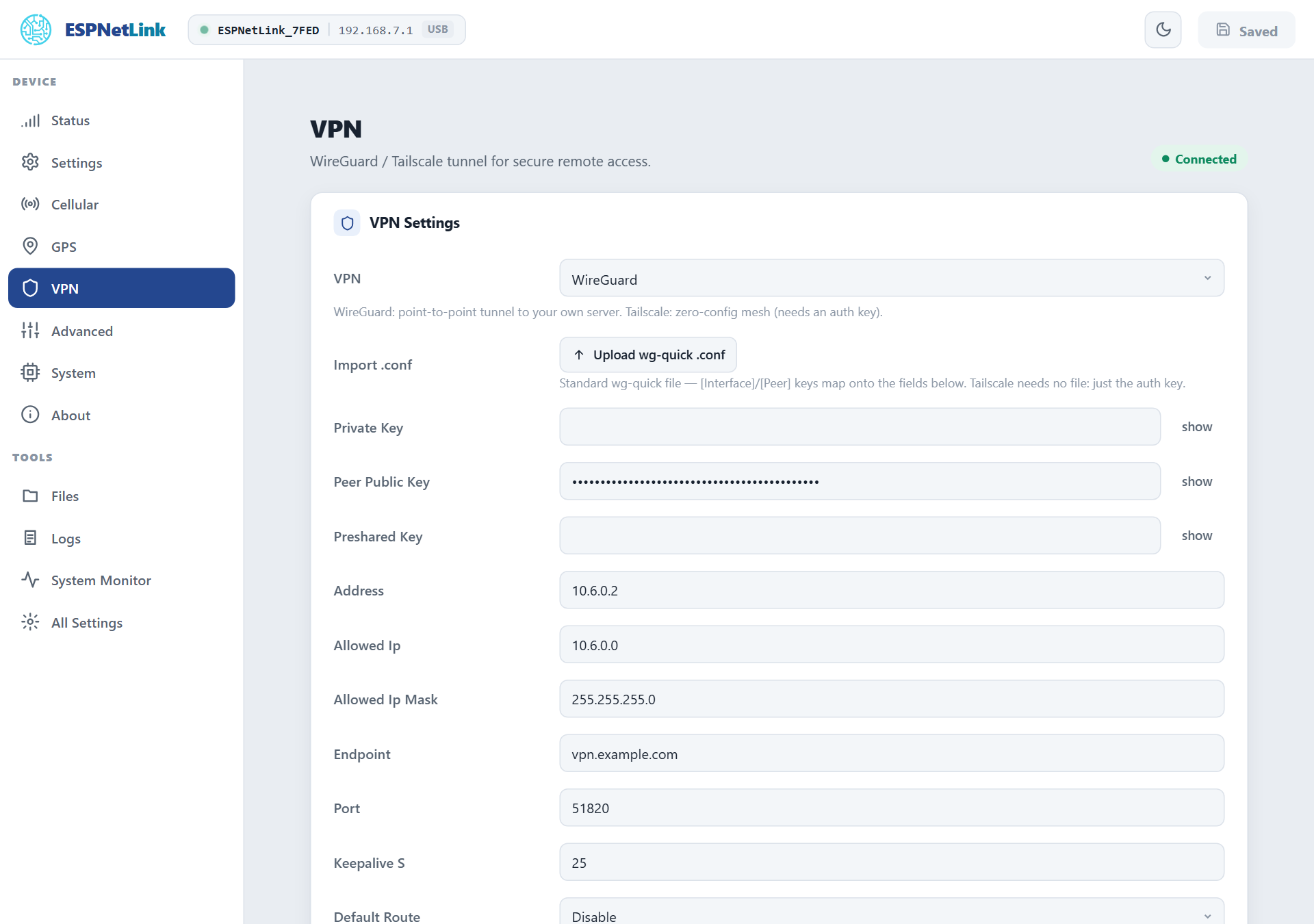
A tunnel that loses the network, or hears nothing from the peer for 30 seconds, is reconnected with a backoff from 5 to 60 seconds.
Tailscale
Pick Tailscale in the VPN dropdown and fill:
| Field | Meaning |
|---|---|
| Ts Auth Key | An auth key from the Tailscale admin console (a reusable, pre-authorised key spares you approving the node by hand). |
| Ts Device Name | The name the dongle takes on the tailnet. Empty uses the default. |
| Ts Control Url | Empty for Tailscale itself; your Headscale server's URL otherwise. |
After Submit Changes the dongle registers, gets a tailnet address (shown as Tailscale IP under VPN Debug and on the Status page), and reaches peers directly when the carrier's network allows it or through Tailscale's relays otherwise. The Tailscale Peers card lists the nodes it sees, their address, whether they are online and whether the path is direct or relay.
Status
VPN Debug shows Type, State (disabled, waiting for the network or the clock, connecting, connected), Endpoint, Tailscale IP, Peers, Connects, Failures and Uptime. The same is GET /api/vpn and vpn on the console. While the tunnel is up the dongle's Home Assistant push carries vpn_ip, which the integration uses as the way to reach the dongle when it is away from home.
Troubleshooting
| Symptom | Likely cause | What to do |
|---|---|---|
State stays waiting |
no mobile network yet, or the clock is not set | wait for Connected (data) on Cellular; Time Synced on Status should say Yes |
State stays connecting (WireGuard) |
a key is wrong, the endpoint or port is unreachable, the server has no peer for this public key | compare the keys on both ends; the server's UDP port must be open |
State stays connecting (Tailscale) |
the auth key is used up or expired, or the node needs approval | a new reusable key; approve the node in the admin console |
| Connected, but nothing reaches the dongle | the allowed range on the server side does not include the dongle, or the dongle's range here does not include your side | set Allowed Ip and its mask to cover the addresses you use |
| Everything is slow with the VPN on | Default Route is on: all traffic goes through the tunnel | turn it off unless you need it |