The web interface
One page served by the dongle itself, in the same design as the WiCAN PRO's: a header with the connection pill and the Submit button, a sidebar of pages, and forms that are generated from the firmware's own settings schema. Nothing to install, and no page ever needs a manual reload.
Reaching it
| Where the dongle is | Address |
|---|---|
| On a computer's USB port | http://192.168.7.1 |
On its own WiFi access point (ESPNetLink_<id>) |
http://192.168.80.1, the dongle's own address |
| On your WiFi network (station mode) | the address your router gave it, or http://espnetlink_<device id>.local by mDNS |
| Plugged into a WiCAN PRO | The dongle's page is never behind the WiCAN's address (192.168.0.10 on the WiCAN's access point, or its address on your network). In WiFi modem mode join the dongle's own access point and open http://192.168.80.1. In USB Ethernet mode the cable is the WiCAN's, so the page is out of reach; the WiCAN's USB › Dongle console is your way to the dongle's commands |
A network you marked as untrusted under Settings › Station refuses the pages and the API (HTTP 403) from that network; the USB link and the access point always work. There is no password on the page: whoever reaches the dongle's address can change its settings.
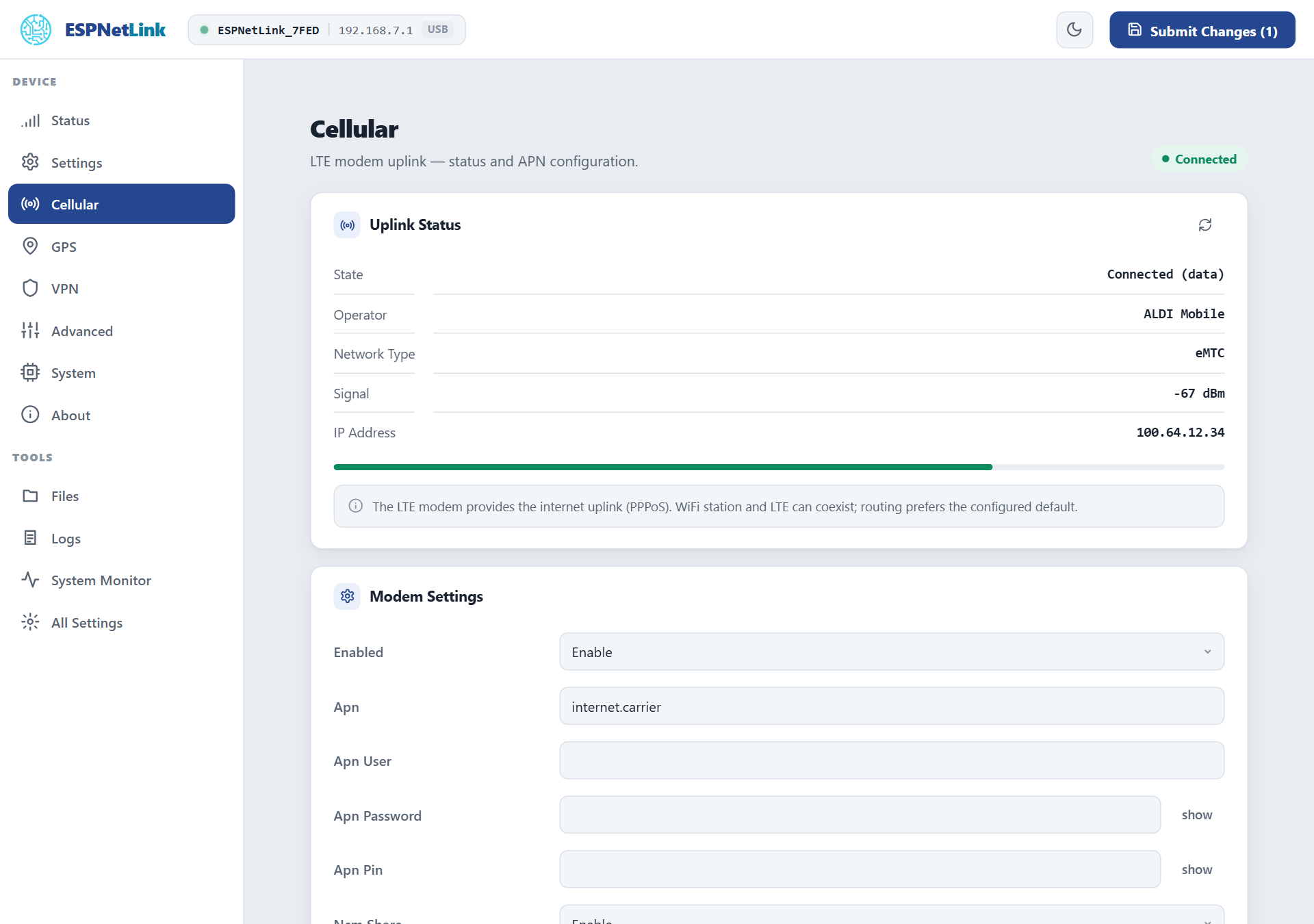
The header
 1
2
3
4
1
2
3
4
- The logo brings you back to Status.
- The connection pill: the dongle's name (
ESPNetLink_and the last four characters of its id), the address you are on, and how you are connected:USB,AP(its access point) orSTA(your network). It turns grey when the page loses the dongle. - Light or dark theme. The choice is remembered by the browser.
- Submit Changes: every setting you change is staged here until you submit, and the count tells you how many pages have pending changes.
Settings apply at a restart
Every setting on the dongle takes effect at the next start. Changing a field on any page stages it; nothing is written until you press Submit Changes. The dialog says what happens next:
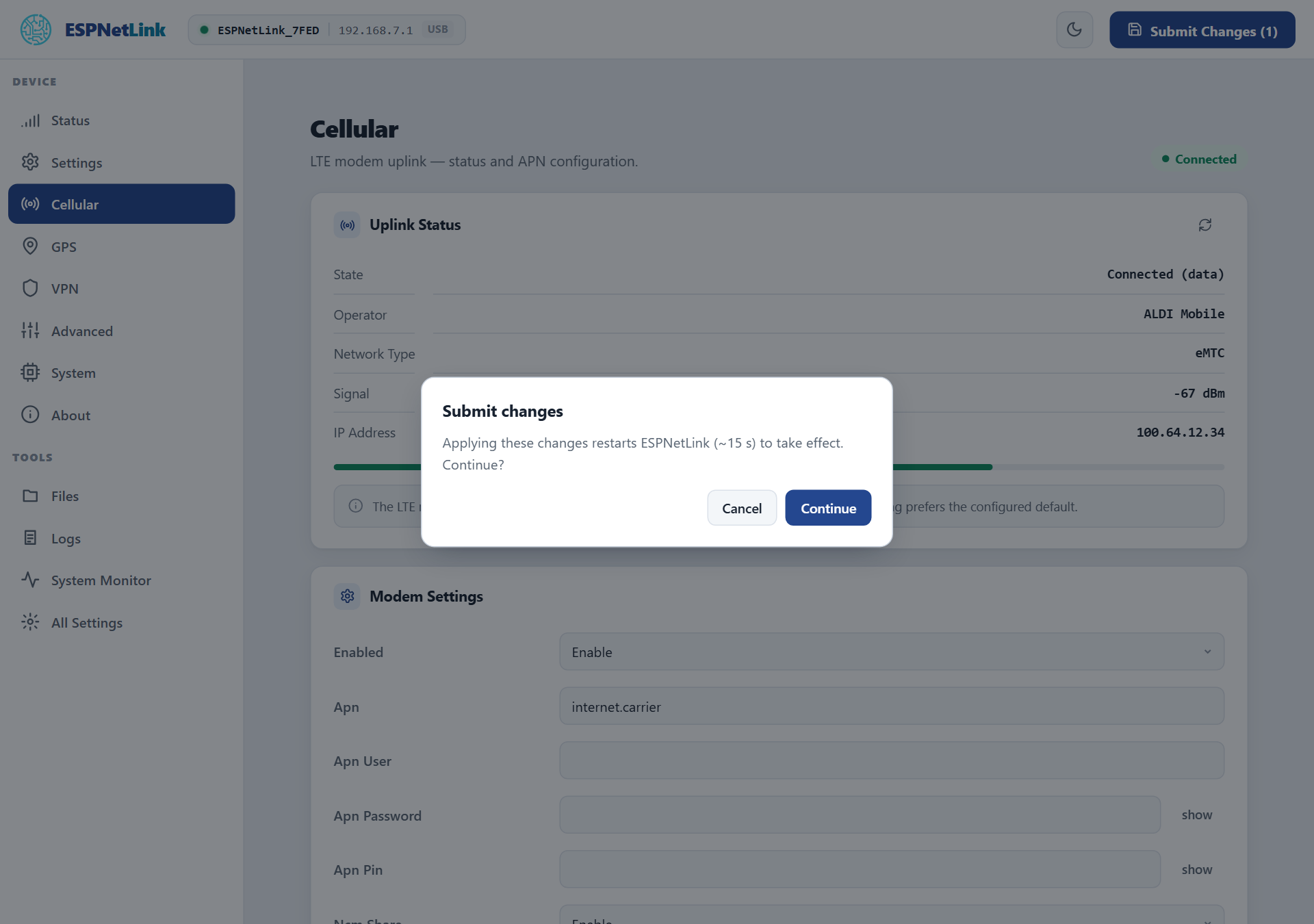
While the dongle restarts the page shows an offline banner and polls until it is back, then reloads the page you were on by itself. Leaving a page with unsaved changes asks whether to stay, discard or submit. A setting a page cannot show (an unknown key from a newer firmware, say) is still on All Settings, where every component's form is generated from the schema.
Through a WiCAN PRO
A dongle plugged into a WiCAN PRO restarts the same way after a submit, and the WiCAN's internet through it pauses for about 45 seconds while the modem registers again.
The pages
DEVICE
| Page | What is on it |
|---|---|
| Status | Four tiles (Connection, LTE, GPS, Uptime) and two cards: Network (WiFi mode, station, addresses, mDNS name, LTE address, VPN) and System (firmware, partition, device id, motion, time synced, free memory, die temperature, unexpected resets). Refreshes every 4 seconds. |
| Settings | WiFi / Access Point, Station (with Scan and up to five backup networks), Network Discovery (mDNS), Home Assistant. |
| Cellular | The uplink status with a signal meter, the modem settings (APN, username, password, SIM PIN, sharing over USB), the USB Ethernet class. |
| GPS | The live fix and the receiver settings (assisted GPS, constellations, static navigation, interference cancellation). |
| VPN | One dropdown for Disabled, WireGuard or Tailscale, the fields of the chosen one, a .conf import, on-device key generation, the tunnel's state and peers. |
| Advanced | Motion detection (the IMU) and the two consoles. |
| System | Reboot, Download Config and Upload Config, Restart History, Factory Reset; the TLS certificate sets; the firmware update. |
| About | Model, firmware, hardware, device id, MAC, API level, partition, uptime, boot count, the IMU's reading. |
TOOLS
| Page | What is on it |
|---|---|
| Files | The /data filesystem: browse, upload, download, delete, new folder. |
| Logs | The log ring that survives restarts, the log level per component, the sinks, Download and Clear. |
| System Monitor | CPU load, every task with its stack headroom and CPU share, both heaps, the die temperature. |
| All Settings | Every settings component as a collapsible form, with check settings and restart pending markers. |
The sidebar's bottom card warns when a component fell back to its defaults (Settings problem) or when a saved change waits for a restart (Restart pending, with a reboot to apply link).
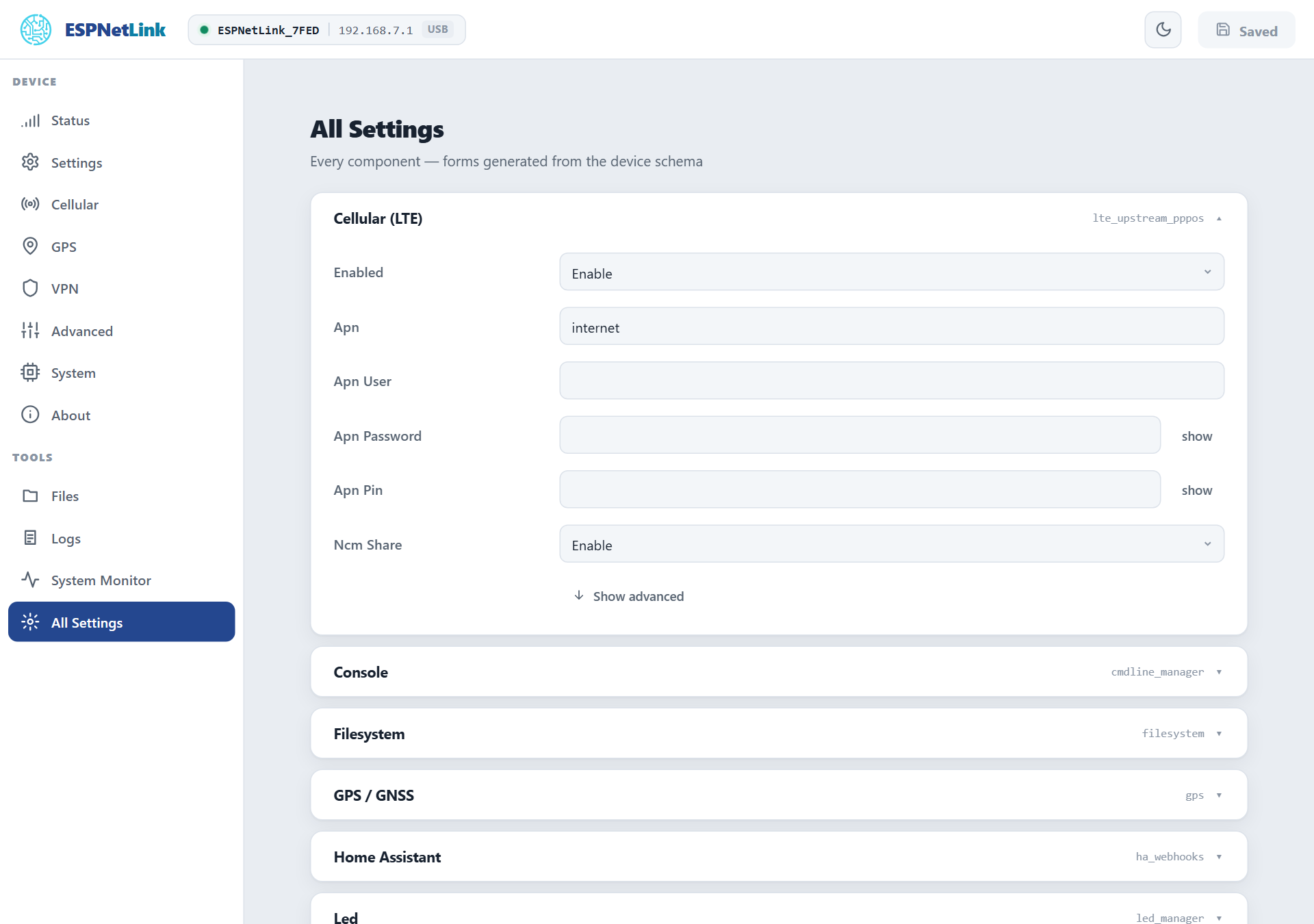
Show advanced
Cards keep the rarely needed fields behind Show advanced: the access point's channel and bandwidth, the station's static address, the GPS passthrough switches, every component's Cli switch (whether its console commands exist). A card whose component is disabled shows only its Enabled switch until you enable it.