Apps over WiFi, BLE and USB
WiCAN works with the OBD and CAN apps you already use. The Protocol under Settings › CAN decides which language it speaks on its port: ELM327 for Car Scanner and the other OBD apps, RealDash frames, SavvyCAN's GVRET, or slcan for SocketCAN and BUSMASTER. One protocol at a time, over WiFi or Bluetooth LE.
The port
Every protocol except AutoPID is served on one port, TCP/UDP Port, 3333 from the factory, on the WiCAN access point and on your network alike:
| Where the app is | Address | Port |
|---|---|---|
| On the WiCAN access point | 192.168.80.1 |
3333 |
| On your network | the Station IP from the Status tab, or wican_<device id>.local |
3333 |
Port Type is TCP for every app in this chapter; UDP exists for a program of your own that prefers datagrams. One client at a time: a second app connecting to the port takes the place of the first. Over Bluetooth, the same protocol is served to the connected phone, see Bluetooth LE.
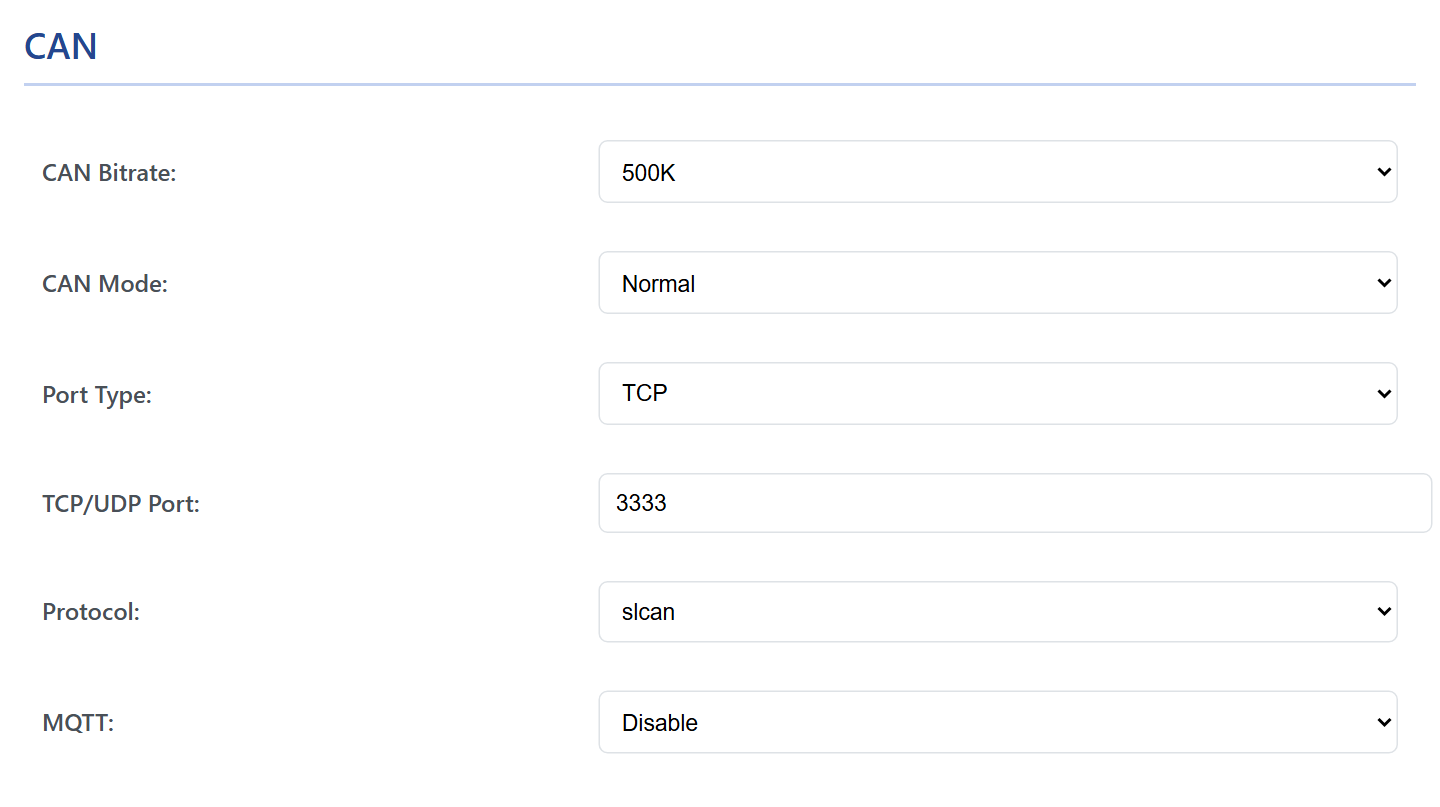
Over the USB cable, WiCAN USB serves the same slcan, RealDash and SavvyCAN frames on a serial port at 4 Mbaud, with no WiFi at all: see USB serial. The sections below say where the cable can replace the network.
Car Scanner, Torque and other ELM327 apps
Set Protocol to elm327 and press Submit Changes. WiCAN then behaves like an ELM327 WiFi adapter (it identifies itself as ELM327 v1.3a). In the app, add a WiFi adapter:
| App setting | On the WiCAN access point | On your network |
|---|---|---|
| Connection type | WiFi | WiFi |
| Address | 192.168.80.1 |
WiCAN's address on your network |
| Port | 3333 |
3333 |
The ECU protocol must be chosen by hand. WiCAN's interpreter speaks the four CAN protocols of ISO 15765-4 and nothing else, and it does not search for the right one: an app left on automatic detection gets BUS INIT: ...ERROR. In the app's adapter settings, pick the protocol of your car and try the next one if the first does not connect:
| Number | Protocol | Fits |
|---|---|---|
| 6 | ISO 15765-4 CAN, 11-bit ids, 500 kbit/s | almost every car built since 2008 |
| 7 | ISO 15765-4 CAN, 29-bit ids, 500 kbit/s | some makes, Honda among them |
| 8 | ISO 15765-4 CAN, 11-bit ids, 250 kbit/s | some older cars and trucks |
| 9 | ISO 15765-4 CAN, 29-bit ids, 250 kbit/s | trucks |
In Car Scanner: Settings › Adapter OBDII ELM327 › WiFi, the address and port, then Advanced settings › ECU Protocol; in Connection Profile pick your make and model, or the generic OBD-II profile. Then Connect on the main screen: ELM Connection: Connected and ECU Connection: Connected mean the car answered, and All Sensors lists what it offers.
Over Bluetooth: enable Bluetooth LE (AP mode only), pair the phone with the passkey, and in the app choose a Bluetooth LE adapter named WiC_<device id>.
Car Scanner logs are how profiles are written
Settings › Adapter OBDII ELM327 › Export log in Car Scanner writes every request and answer to a file. It is the raw material for a vehicle profile and for checking a custom PID.
RealDash
RealDash can use WiCAN in two ways.
As a RealDash CAN device (raw frames, for a RealDash XML channel file): set Protocol to realdash66 and the CAN Bitrate of the car's bus, Submit Changes. In RealDash: Garage › your dashboard › Add connection › Adapters (CAN/LIN) › RealDash CAN › WIFI/LAN, enter 192.168.80.1 (or the network address) and port 3333, Done. Over Bluetooth, enable Bluetooth LE on WiCAN and choose Bluetooth LE instead of WIFI/LAN in RealDash (Android and iOS; RealDash on Windows uses WiFi only).
As an OBD2 adapter (no channel file, the standard values): set Protocol to elm327. In RealDash: Add connection › Adapters (OBD2) › WiFi, 192.168.80.1 port 3333 (or Bluetooth LE), then in the connection settings choose the car's protocol, 11-bit 500 kbit/s for most cars, and switch on Request Only First Reply.
Over the USB cable: with Protocol on realdash66, choose SERIAL/USB instead of WIFI/LAN in RealDash, pick the port and set the baud rate to 4000000.
SavvyCAN
Set Protocol to savvyCAN and the bit rate of the bus, Submit Changes. The page fixes the port at 23 and the type at TCP, which is what SavvyCAN's GVRET protocol expects. In SavvyCAN: Connection › Open Connection Window › Add New Device › Network Connection. On the same network SavvyCAN finds WiCAN by itself (WiCAN announces itself every second while no client is connected); otherwise type the address. Create New Connection, then tick Enable Bus. Frames flow both ways: SavvyCAN can send as well as capture.
SocketCAN on Linux
WiCAN as a can0 interface over the slcan protocol. Leave Protocol on slcan (the factory setting). On the Linux machine, make the TCP stream a serial port and attach slcand to it; replace the address with WiCAN's address on your network when it is not the access point:
sudo socat pty,link=/dev/netcan0,raw tcp:192.168.80.1:3333 &
sudo slcand -o -c -s6 /dev/netcan0 can0
sudo ip link set can0 txqueuelen 1000
sudo ip link set can0 up
-s6 is 500 kbit/s and is sent to WiCAN, which switches its bus to that rate; -s5 is 250 kbit/s, -s8 1 Mbit/s. Then candump can0, cansend, python-can and the rest work as on any CAN interface.
Over the USB cable there is no socat to run: slcand opens the port directly, see USB serial.
BUSMASTER
BUSMASTER connects through the VSCom CAN-API driver to an slcan stream. Leave Protocol on slcan, Port Type TCP, port 3333, Submit Changes. Use the BUSMASTER build with the VSCom driver from the MeatPi download folder at https://drive.google.com/drive/folders/1qJelUAHGrn_YbNIP0Jk_KmNENG-hKbtl. In BUSMASTER: Driver Selection › VSCom CAN-API, then Channel Configuration › Advanced, address and port 192.168.80.1:3333, tick Hardware Timestamps, choose the bit rate, OK and Connect.
Your own program
- slcan over TCP: connect to port
3333, sendO\rto open the bus, read frames ast<id><len><data>\r(11-bit) orT<id><len><data>\r(29-bit) and send your own the same way;S4\rtoS8\rset the bit rate (125, 250, 500, 800 kbit/s, 1 Mbit/s),C\rcloses the bus,V\randN\rreturn a version and a serial number. The firmware also takes the slcan acceptance filter commandsmandM. - ELM327 over TCP: port
3333, sendATZ\r, then OBD requests such as010C\rand read until the>prompt. ELM327 commands lists what the interpreter answers. - RealDash and GVRET are binary frame protocols; the open-source RealDash and SavvyCAN projects document them.
- MQTT gives frames as JSON in both directions without any socket code, see MQTT.
- Examples in Python, C#, LabVIEW and other languages are in the
programming_examplesrepository athttps://github.com/meatpiHQ/programming_examples, and the protocol descriptions are in the download folder named above.
Troubleshooting
| Symptom | Likely cause | What to do |
|---|---|---|
| The app cannot connect | the phone is not on WiCAN's network, the port is wrong, or the protocol is AutoPID (the port is not served) | the phone's WiFi; port 3333; the protocol |
The app connects but BUS INIT: ...ERROR or no ECU |
the app is on automatic protocol detection, or the wrong protocol | pick protocol 6, then 7, 8, 9 by hand |
| Connected, but no data | ignition off, or a CAN app with the wrong bit rate | ignition on; the CAN Bitrate of the bus |
| Data stops when a second app connects | one client at a time per port | close the other app |
| SavvyCAN does not find WiCAN | it is on another network, or a client is already connected | type the address; disconnect the other client |
| Slow over Bluetooth | Bluetooth LE carries less than WiFi | WiFi for CAN tools, Bluetooth for OBD apps |