Recovery over USB
The last resort for a WiCAN PRO whose flash is corrupted: a firmware that does not start, a device that does not even reach safe mode, an update that was cut off half way. The whole firmware is written again over the USB-C cable with Espressif's flashing tool, and the flash is erased on the way, so the device starts as new.
Try the gentler ways first. Factory reset has safe mode, which recovers from a bad configuration and from a firmware that crashes at start with nothing but the button. USB flashing is for when safe mode does not come up either.
- You need
- A USB-C data cable, a computer, power for the device from its OBD-II plug (the car, or a bench supply: the USB-C port does not power WiCAN PRO), the firmware zip from the releases page, and the flashing tool
- The files
- The four files in the zip:
bootloader.bin,partition-table.bin,ota_data_initial.binand the firmwarewican-fw_obd_pro_vXXX.bin - The tool
- ESP Tool in the browser at
https://espressif.github.io/esptool-js/(Chrome or Edge), oresptool.pyon the command line (pip install esptool) - Keeps
- The SD card only. The erase wipes the settings, the files (vehicle tables, certificates, scripts, the dashboard, DBC files), the Bluetooth pairings and the crash report
Get the files
Releases are at https://github.com/meatpiHQ/wican-fw/releases. The zip of a release, wican-fw_obd_pro_vXXX.zip, holds the four files. The .bin published on its own is for the web interface's update and is not enough for a recovery. A pre-release may come without a zip: flash the latest release, then update to the pre-release from the web interface.
Install the serial driver
The USB-C port of WiCAN PRO is a WCH CH342 dual serial converter. Windows needs WCH's CH343SER driver from https://www.wch-ic.com/downloads/CH343SER_EXE.html (it covers the CH342). WCH's drivers for macOS and Linux are at https://github.com/WCHSoftGroup/ch34xser_macos and https://github.com/WCHSoftGroup/ch343ser_linux; check first whether your system shows the two ports without them.
Connect
-
Power first. Plug WiCAN PRO into the car's OBD-II port, or a bench supply on the plug. It does not run from USB.
-
Then the USB-C cable to the computer. Two serial ports appear: use the first one, Serial-A. Windows lists them in the Device Manager as
USB-Enhanced-SERIAL-AandUSB-Enhanced-SERIAL-Bwith their COM numbers; Linux and macOS show two serial devices as well, Serial-A being the first of the pair. -
Open the tool:
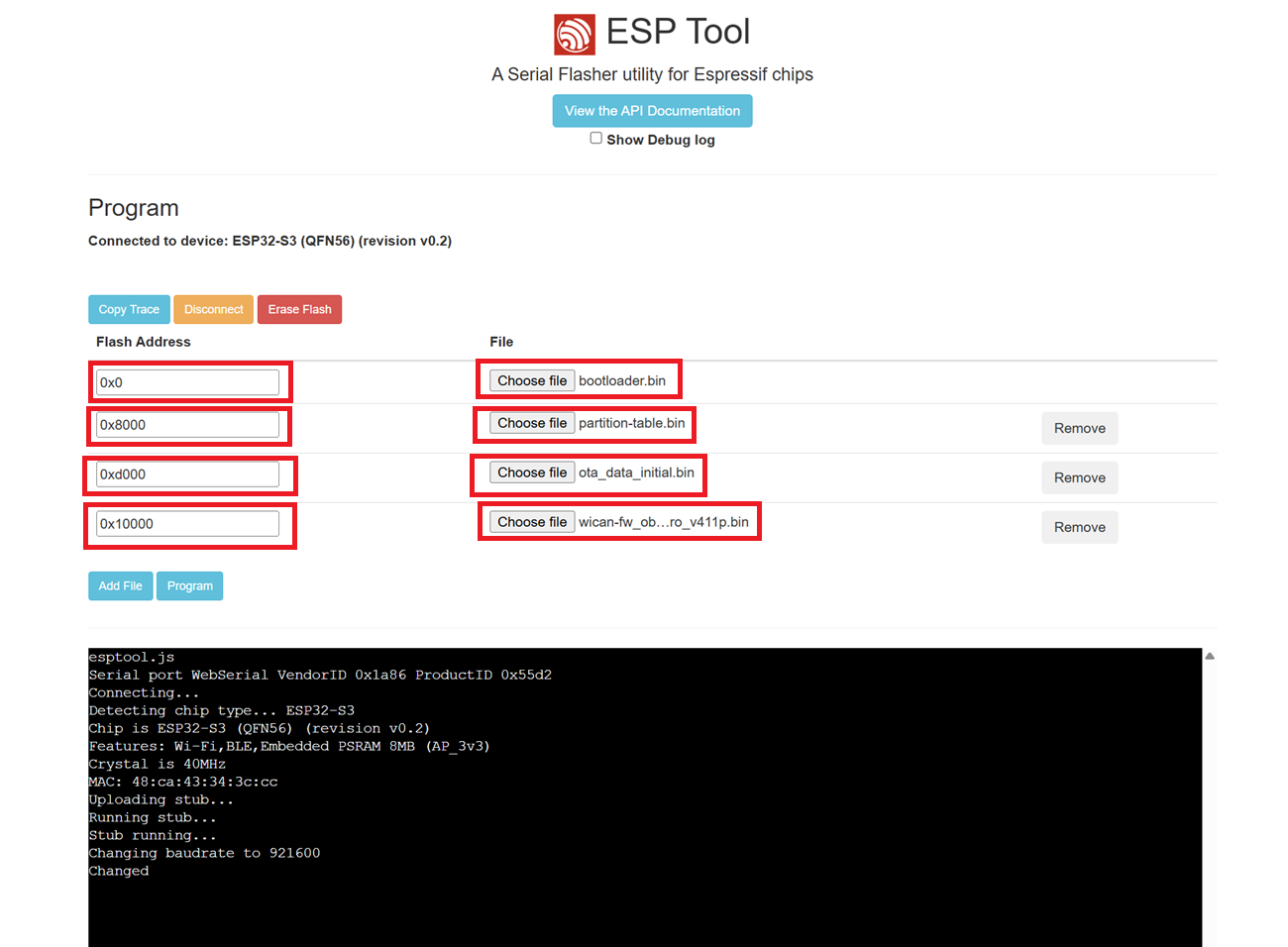
https://espressif.github.io/esptool-js/in Chrome or Edge, Connect, pick the Serial-A port in the browser's dialog. The page then saysConnected to device: ESP32-S3.
Erase and flash
-
Erase Flash. This is what makes it a recovery: a corrupt configuration, a half-written update, whatever is wrong in the flash goes with it. It takes a few seconds.
-
Add the four files, one row each, with these addresses:
File Address bootloader.bin0x0partition-table.bin0x8000ota_data_initial.bin0xd000wican-fw_obd_pro_vXXX.bin0x10000 -
Program. The log under the buttons shows the four writes. The firmware is the long one, about a minute at 921600 baud.
-
Unplug the USB cable, then power the device off and on (out of the OBD-II port and back in). It starts as a new device: join
WiCAN_<device id>with@meatpi#and run Quick Setup. A firmware newer than the zip you flashed goes on afterwards from the web interface, see Update.
With esptool.py
The same from the command line, with the name of your Serial-A port:
esptool.py --chip esp32s3 --port COM5 erase_flash
esptool.py --chip esp32s3 --port COM5 write_flash 0x0 bootloader.bin 0x8000 partition-table.bin 0xd000 ota_data_initial.bin 0x10000 wican-fw_obd_pro_vXXX.bin
Leave out the first line only when the flash is not the problem and the settings are worth keeping. For a recovery, erase.
Troubleshooting
| Symptom | Likely cause | What to do |
|---|---|---|
| No serial port appears | a charge-only cable, no driver, or the device is not powered | a data cable, the driver, OBD-II power before the cable |
| Two ports, and the tool does not connect | the second port, Serial-B, was picked | pick Serial-A; if in doubt, try the other one |
Failed to connect |
the tool did not catch the chip | unplug the USB cable and plug it in again, then Connect at once |
| The write stops half way | a loose cable, or the supply dropped | the cable; a steady supply on the OBD-II plug |
| ESP Tool says the browser is not supported | Firefox or Safari | Chrome or Edge, which have Web Serial |
| The device starts and asks to be set up | expected after an erase | Quick Setup, then a backup if you have one |